
The map hierarchy panel
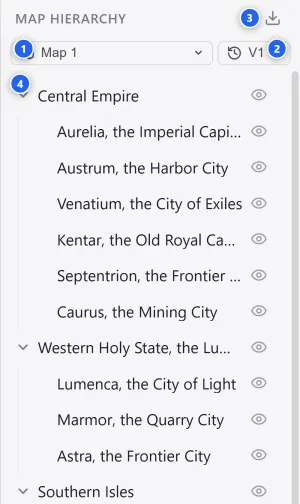
The right panel in map view is the map hierarchy panel. It shows the current map’s structure as a hierarchy and gives you access to the map-level features.
-
Switch map switches the current map when the project has more than one.
-
Manage versions switches and manages the current map’s versions. Duplicate a version to build a different look of the same map.
-
Export exports the map as a PNG or JPEG image. You can set the resolution multiplier and a crop area.
-
The hierarchy list shows regions and markers as a hierarchy. Click an item to select that element, or toggle its visibility with the eye icon.
Right-clicking an item in the list opens a menu with rename, zoom to region, open linked document, and delete.
While a document is open, the path of the element it is linked to appears above the list. Click the path to select that element and move the view there.
See Edit regions and hierarchy for building and editing the hierarchy.