
Region style and zoom visibility
Style panel
Section titled “Style panel”Select a region and the style panel appears at the top of the right panel, where you can adjust the fill color, outline, and opacity. The project’s default region style is set in Settings, and newly created regions follow it.
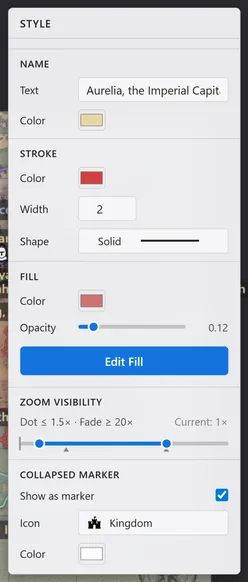
| Item | What it does |
|---|---|
| Name | Sets the name text shown on the map and the label color. |
| Hide name on map | When on, the label disappears from the map and from exported images, leaving only the color and border. The name stays in the Map hierarchy panel and in documents, and the region can still be selected from the hierarchy. |
| Border | Sets the outline color, thickness, and line style (solid, dashed, and so on). |
| Fill | Sets the fill color and opacity. Edit fill enters the image fill editing mode, covered in Fill regions with images. |
| Zoom display range | Sets, with the two handles, the zoom where this region collapses into a dot and where it fades. |
| Collapsed marker | When on, the region shows as a marker with the chosen icon and color instead of collapsing into a dot. |
Zoom visibility
Section titled “Zoom visibility”A region never disappears completely on its size alone. When it gets too small on screen it collapses into a single dot, and when it grows large enough to fill the screen it recedes into a faint background.
You can adjust these thresholds per region with the Zoom Visibility slider in the style panel. Below the chosen zoom the region shows as a dot; above it, it fades. This lets you layer what information appears at each zoom level.
You can also type values into the Min Zoom and Max Zoom fields below the slider. The track is logarithmic, so one pixel covers a wider span the higher the value goes. Use the input fields to align several regions to one threshold or to set an exact value. A value beyond the range is clamped to the nearest end.
The number above the slider is the range you have set, and the one on the right is the current zoom of the view. Set one against the other. Pushing a handle all the way to its end means no limit on that side, so the region never collapses to a dot or fades out.