
Draw roads
The Draw Road tool in background edit mode draws roads on the map. Unlike regions and markers, a road is part of the background: it does not appear in the hierarchy and cannot link a document. Roads always render above terrain and images, below regions and markers, and pass hidden behind stamps.
Drawing
Section titled “Drawing”-
Select the Draw Road tool in background edit mode.
-
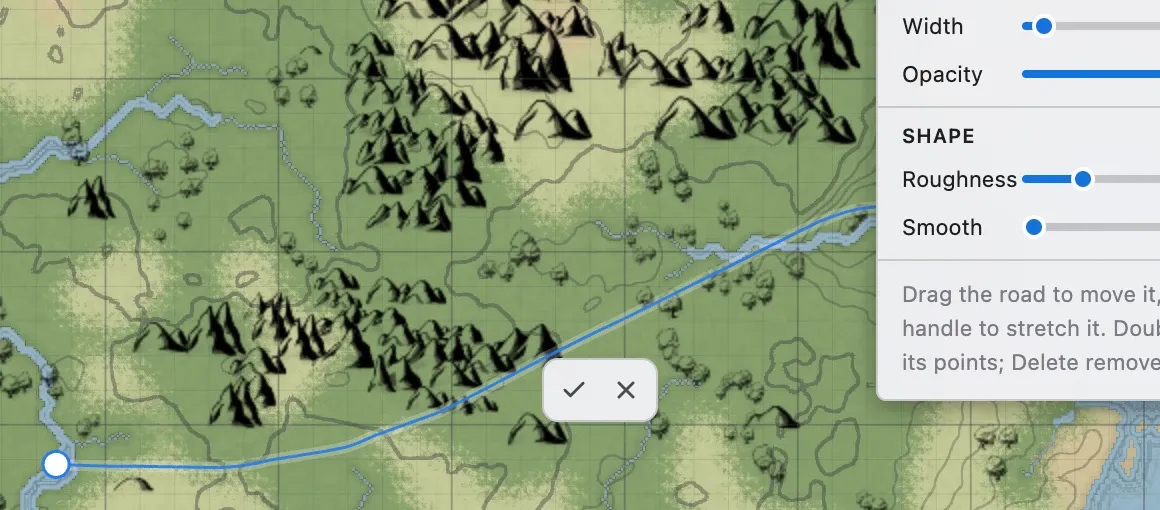
Drag on the canvas to draw a road. When you release, the road is created and enters editing right away.
-
Adjust its style and shape, then confirm with the check button or
Enter. The cancel button deletes the road you just drew.
Selecting and editing
Section titled “Selecting and editing”Click a road on the canvas, or pick one from the list in the right panel. The Select / Move tool can also select roads by clicking.
Editing has two levels. A first selection handles the whole road; double-clicking enters point editing.
| Action | What it does |
|---|---|
| Drag | Moves the whole road. |
| Drag an end handle | Stretches or shortens the road. |
Shift+drag an end handle | Continues the road from that end. |
| Double-click | Enters point editing. In point editing, double-clicking the line adds a point there. |
| Drag a point | Moves the point to reshape the road. |
Delete | Removes the selected point in point editing, or the road at the whole-road level. |
Esc | In point editing, steps out to whole-road selection; pressing again clears the selection. |
Style (floating panel)
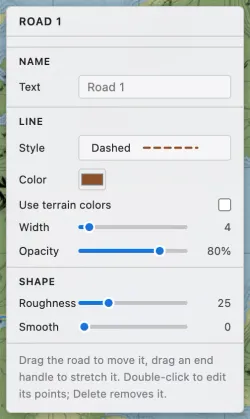
Section titled “Style (floating panel)”Selecting a road shows a style panel at the top right of the map.
| Element | What it does |
|---|---|
| Name | The name shown in the list. It is not drawn on the map. |
| Style | Choose dashed, solid, dotted, or double line. |
| Color | The road color. Turn on Use terrain colors to pick from the map’s terrain colors; the road then follows later changes to that terrain color. |
| Width | The thickness of the road. |
| Opacity | How much the background shows through. |
| Roughness | Adds a hand-drawn meander between points. |
| Smooth | Relaxes the points into a gentler curve. |
Roughness and Smooth only move existing points. They never add or remove any.
List (right panel)
Section titled “List (right panel)”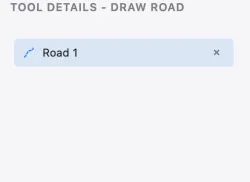
With the Draw Road tool selected, the right panel lists the roads you have drawn. Clicking an entry selects that road and moves the view to it, which helps when a road sits off screen.