Text
The Text tool (B) in background edit mode places lettering on the map. Use it for sea names, mountain range names, a map title, and anything else that is awkward to express as a region or a marker. Like a road, a text is part of the background: it does not appear in the hierarchy and cannot link a document.
Region and marker labels keep their size as you zoom. A text belongs to the map itself, so it grows and shrinks with it.
Adding text
Section titled “Adding text”-
Select the Text tool in background edit mode.
-
Click an empty spot to add text at the default size, or drag to add it at the size you drag.
-
Type the text, then finish editing with
Ctrl+EnterorEsc.
Selecting and editing
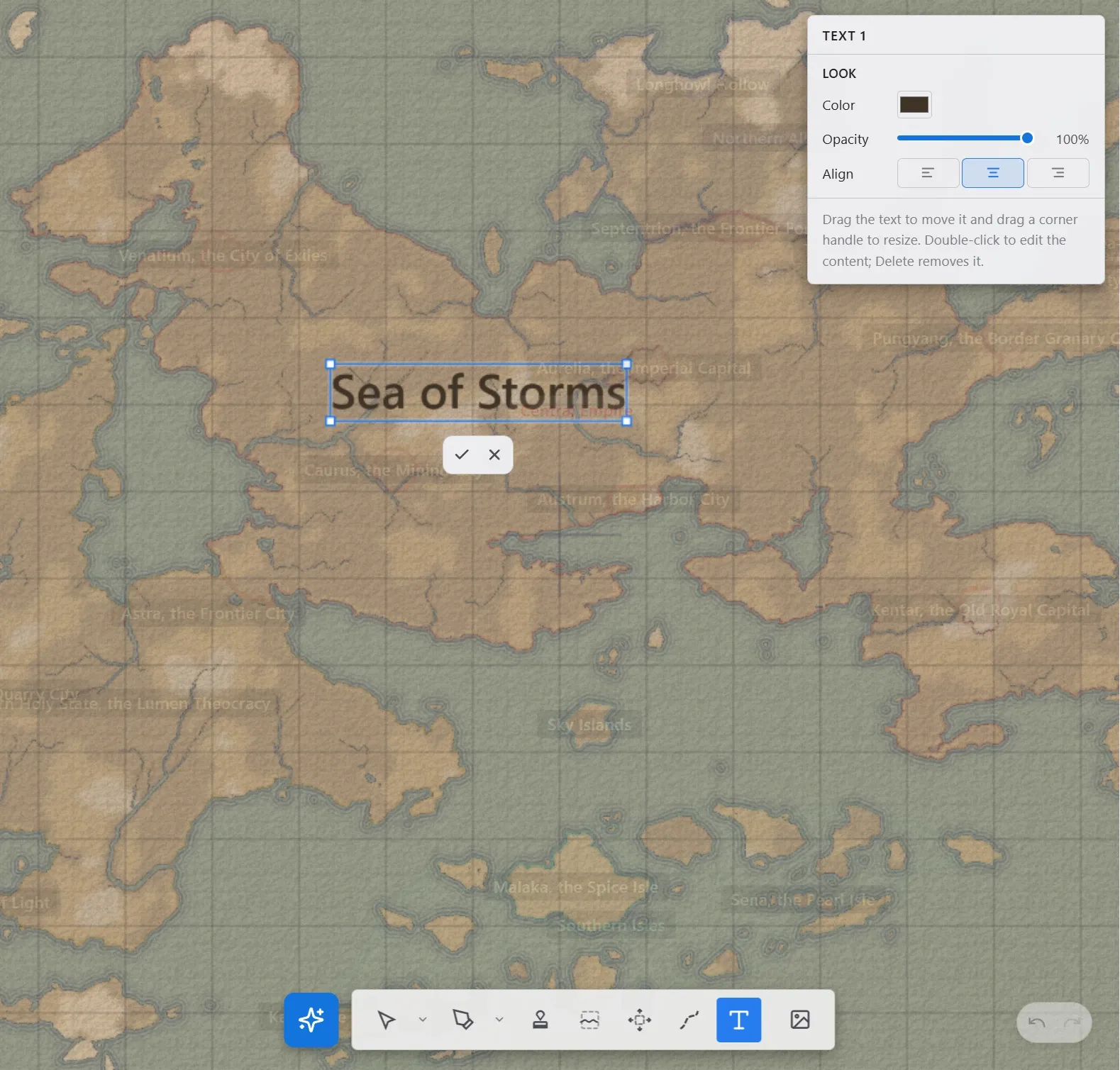
Section titled “Selecting and editing”Click a text on the canvas, or pick one from the list in the right panel. The Select / Move tool can also select texts by clicking.
| Action | What it does |
|---|---|
| Drag | Moves the text. |
| Drag a corner handle | Changes the letter size. The aspect ratio is always preserved. |
Double-click or Enter | Edits the content directly on the canvas. |
Ctrl+Enter or Esc | Finishes content editing. |
Delete | Removes the text. |
Clearing the content and finishing the edit deletes that text.
There is no font-size value to set. The size of the box is the letter size, so drag a corner handle until it looks right.
Look (floating panel)
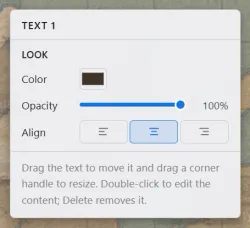
Section titled “Look (floating panel)”Selecting a text opens the style panel at the top right of the map.
| Control | What it does |
|---|---|
| Color | The color of the letters. |
| Opacity | How much the background shows through the letters. |
| Align | Left, center, or right, for text with several lines. |
List (right panel)
Section titled “List (right panel)”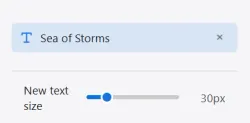
Selecting the Text tool lists the texts you have placed in the right panel. The order of the list is the drawing order, so dragging a row changes which text is in front where they overlap. The New text size row at the bottom sets the size new texts start at, and applies across all projects.