
Tables and infoboxes
A Table or an Infobox is edited while it stays drawn in the document. An Infobox is a card that sums up names and values, like the summary box on a wiki. Clicking a cell opens an input field in that cell alone, and the other cells stay drawn. The raw markdown shows only when you choose Edit as Markdown from the menu.
On a Mac, press ⌘ instead of Ctrl.
Insert
Section titled “Insert”Tables and infoboxes are inserted from three places.
| Element | What it does |
|---|---|
| Format toolbar | Press the Table or Infobox button. |
| Right-click menu | Choose Table or Infobox under Insert. |
/ menu | Type / at the start of a line and choose Table or Infobox. |
A new table has two columns, with one header row and one body row, and the first cell of the header row opens. A new infobox has a title and one empty row, and it opens with the title selected so you can type right away. If you insert an infobox with text selected, the first line of the selection becomes the title. The lines from the second one on stay below the infobox as they are.
Inserted on a line that holds text, it goes below that line. Blank lines keep it apart from the text above and below. A table or infobox pasted into the body also goes on lines of its own, not inside a paragraph.
When the arrow keys reach a table or infobox from the body, the nearest cell opens.
Tables
Section titled “Tables”Edit cells
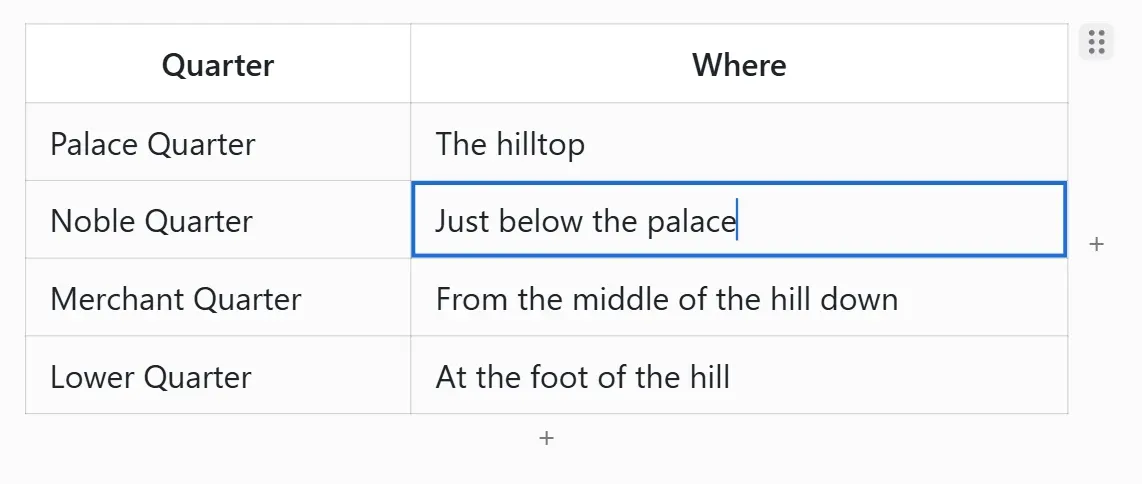
Section titled “Edit cells”Click a cell to open an input field in it. In an open cell you can use the format toolbar’s Bold, Italic, Strikethrough, Inline Code, and Link, and their shortcuts. Type [[ to get document link autocomplete. Links in a cell open when clicked. A picture written like ![[picture.png|40]] shows at that size.
| Key | What it does |
|---|---|
Tab | Moves to the next cell and selects its text. In the last cell, adds a row below. |
Shift+Tab | Moves to the previous cell. |
Enter | Moves to the cell below. In the last row it adds a row, and in an empty last row it removes that row and leaves the table. |
Ctrl+Enter | Adds a row below the current row. |
Shift+Enter | Starts a new line inside the cell. |
| Arrows | At the end of the text, moves to the cell in that direction. ← and → go on from the end of a row to the previous or next row. Pressing ↑ in the first row, ↓ in the last row, ← in the table’s first cell, or → in its last cell leaves the table. |
Esc | Leaves to the line below the table. |
Backspace | In an empty cell, moves to the previous cell. If a whole body row is empty, removes that row. |
Ctrl+A | Each press widens the selection: the cell’s text, then every cell, then the whole table. |
Add rows and columns
Section titled “Add rows and columns”Hover over a table and + strips appear along its bottom and right edges. Click the bottom strip (Add row) to add a row at the bottom. Click the right strip (Add column) to add a column at the far right. The first cell of the new row or column opens. To add one somewhere else, use the table menu.
Table menu
Section titled “Table menu”Right-click a cell to open the table menu. Cells of the header row have no Insert row above or Delete row.
| Element | What it does |
|---|---|
| Insert row above, Insert row below | Adds an empty row above or below the clicked cell. |
| Insert column left, Insert column right | Adds an empty column to the left or right of the clicked cell. |
| Delete row | Deletes the clicked cell’s row. |
| Delete column | Deletes the clicked cell’s column. A table’s only column cannot be deleted. |
| Move | Moves with Row up, Row down, Column left, and Column right. |
| Align | Applies Align left, Align center, or Align right to that column. |
| Copy table | Copies the whole table as a markdown table and an HTML table together. In apps that take rich text, it pastes as a table. |
| Edit as Markdown | Shows the raw markdown in place of the table. When the cursor leaves the table’s lines, it is drawn as a table again. |
| Delete table | Deletes the table. |
Select several cells
Section titled “Select several cells”Drag across several cells to select them, or Shift+click another cell while a cell is open. Pressing Shift+arrow at the end of a cell’s text also widens the selection.
| Key | What it does |
|---|---|
Delete, Backspace | Clears the contents of the selected cells. |
Ctrl+C, Ctrl+X | Copies or cuts the selected cells. |
Ctrl+V | Text from a single cell goes into every selected cell, and a table of several cells fills in from the top left cell of the selection. |
Ctrl+B, Ctrl+I | Applies the formatting to every cell that holds text. If every cell already has it, removes it. The toolbar’s Strikethrough and Inline Code work the same way. |
| Typing | Clears the selection and replaces the open cell’s text. |
Esc, Enter | Clears the selection and returns to the open cell. |
Tab, Shift+Tab | Clears the selection and moves from the open cell to the next or previous cell. |
| Arrows | Clears the selection and moves from the open cell to the cell in that direction. |
Right-click the selected cells and the top of the menu shows Copy, Cut, Clear contents, Delete selected rows (N), Delete selected columns (N), and Align, with Copy table, Edit as Markdown, and Delete table below them.
Copied cells become a markdown table whose first row is the header row. An HTML table is copied along with it. In apps that take rich text, it pastes as a table.
Paste a table
Section titled “Paste a table”Paste a table of several cells into a cell and it fills in from that cell, adding any rows and columns it needs. The pasted cells stay selected. You can paste markdown tables, tables copied from a spreadsheet or a web page, and copied infobox rows.
Move and delete a table
Section titled “Move and delete a table”Hover over a table and a grip appears at its top right. Hovering over the grip shows Click to select, drag to move.
| Action | What it does |
|---|---|
| Click | Selects the whole table. A selected table is deleted with Delete, and it can be copied or cut. |
| Drag | Moves the table to another spot. A line shows where it will be dropped. |
| Right-click | Opens a menu with Copy table, Edit as Markdown, and Delete table. |
Infoboxes
Section titled “Infoboxes”Infobox syntax
Section titled “Infobox syntax”An infobox is written in one of two forms, and both show as the same card. Inserting one from the format toolbar, the right-click menu, or the / menu writes the Obsidian form.

The Obsidian form uses Obsidian’s callout syntax (> [!infobox]): a markdown table goes inside a callout of the infobox type.
> [!infobox] Aurel Empire> | | |> | --- | --- |> | Capital | Aurelia |> | Population | 50 million || Line | What it does |
|---|---|
> [!infobox] title | The title at the top of the card. If the title is left empty, the first # heading inside the callout becomes the card’s title. |
| The table’s header row | Shows as the card’s header row. If it is empty, it does not appear. |
| The table’s body rows | The first cell becomes the name, and the rest the value. |
# heading | A # heading after the card’s title becomes a section row that divides the card. |
| A line holding only a picture | Shows as a picture in the card. |
| Other text | Takes a whole line without splitting it into cells. |
The World Note form puts [infobox] and [/infobox] each on a line of its own, with one entry per line between them.
[infobox]|+ Aurel Empire| Capital | Aurelia| Population | 50 million| Founded | 412, Third Dynasty[/infobox]| Line | What it does |
|---|---|
|+ title | The title at the top of the card. It is optional, and if written more than once only the first is the title. |
| name | value | Makes one row from a name and a value. |
| text | Takes a whole line without splitting it into cells. |
| A line holding only a picture | Shows as a picture in the card. |
In the World Note form a value may contain a vertical bar. Only the first two vertical bars on a line are read as cell separators, and the rest belongs to the value.
Both forms are saved in the document file as plain text. If you open the file in another markdown editor, the content stays as it is.
Edit cells
Section titled “Edit cells”Click a title, a name, or a value to open an input field in that cell alone. Empty cells show Title, Name, and Value in faded text. Formatting, links, and pictures apply and show the same way as in table cells.
| Key | What it does |
|---|---|
Tab | Moves to the next cell, in the order title, name, value, next row. In the last cell, adds a row below. |
Shift+Tab | Moves to the previous cell. |
Enter | Moves from the title to the first row, from a name to the value in the same row, and from a value to the next row. In the last row it adds a row, and in an empty last row it removes that row and leaves the card. |
Ctrl+Enter | Adds a row below the current row. Pressed in the title, adds one at the bottom. |
Shift+Enter | Starts a new line in a name or value of an Obsidian-form card. |
| Arrows | At the end of the text, moves to the neighboring cell or to the row above or below, and leaves the card at its edge. |
Esc | Leaves to the line below the card. |
Backspace | In an empty cell, moves to the previous cell. Pressed in the name of an empty row, removes that row. |
Ctrl+A | Each press widens the selection: the cell’s text, then every row, then the whole card. |
Paste or drop a picture on the card to add a picture row below the title.
Add rows and the infobox menu
Section titled “Add rows and the infobox menu”Hover over a card and a + (Add row) appears at its bottom. Click it to add an empty row at the bottom and open its name.
Right-click a row’s name or value to open the infobox menu. Right-clicking the title, the header row, a section row, a picture row, or an empty part of the card shows Add row instead of the items that work on a row.
| Element | What it does |
|---|---|
| Insert row above, Insert row below | Adds an empty row above or below the clicked row. |
| Delete row | Deletes the clicked row. |
| Move up, Move down | Moves the clicked row one step. |
| Add row | Adds an empty row at the bottom. |
| Copy infobox | Copies the card’s raw markdown. |
| Copy as text | Copies text made of the title and lines in the form name: value. Use it to paste somewhere that cannot read markdown tables. |
| Edit as Markdown | Shows the raw markdown in place of the card. When the cursor leaves the card’s lines, it is drawn as a card again. |
| Delete infobox | Deletes the card. |
Select several rows
Section titled “Select several rows”Drag across several rows to select them, or Shift+click another row while a cell is open. Pressing Shift+↑ or Shift+↓ on the first or last line of a cell also widens the selection. The title can be selected along with the rows.
| Key | What it does |
|---|---|
Delete, Backspace | Deletes the selected rows. |
Ctrl+C, Ctrl+X | Copies or cuts the selected rows as a name | value markdown table. With the title selected too, they are copied as an infobox, and pasting them makes an infobox. |
Ctrl+B, Ctrl+I | Applies the formatting to every title, name, and value that holds text in the selected rows. If all of them already have it, removes it. The toolbar’s Strikethrough and Inline Code work the same way. |
| Typing | Clears the selection and replaces the open cell’s text. |
Esc, Enter | Clears the selection and returns to the open cell. |
Tab, Shift+Tab | Clears the selection and moves from the open cell to the next or previous cell. |
| Arrows | Clears the selection and moves from the open cell to the neighboring cell or to the row above or below. |
Right-click the selected rows and the top of the menu shows Copy, Cut, and Delete selected rows (N).
Paste a markdown table, a table copied from a spreadsheet or a web page, or copied infobox rows into a cell, and they go in as rows below that cell. If the row holding that cell is empty, they take that row’s place.
Move and delete a card
Section titled “Move and delete a card”Hover over a card and the same grip as on a table appears at its top right.
| Action | What it does |
|---|---|
| Click | Selects the whole card. A selected card is deleted with Delete, and it can be copied or cut. |
| Drag | Moves the card to another spot. |
| Right-click | Opens the infobox menu. |