
Together
With Together, one person opens their project as a room, and the people who receive its invite code join that room. The person who opened the room is called the host, and the people who join are called participants. Participants see the host’s map and documents in real time, and edit them together when the host allows it.
Before you start
Section titled “Before you start”Together connects the apps of the host and the participants directly over the internet. The host and the participants all need an internet connection. If the two apps’ versions do not work together, a notice appears when you join. In that case, update both apps to the latest version.
A connection is made after the host lets a participant in. Participants are not connected to each other.
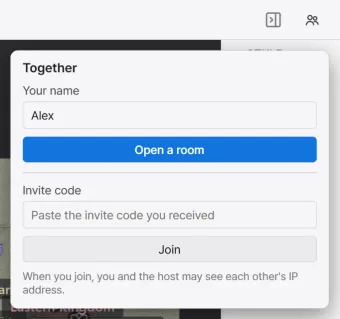
When the connection is made, the apps of the host and the participant exchange their network addresses. So the host and the participant can see each other’s IP address. The panel also says this in one line: in the host’s panel it sits below the invite code, and in the panel before joining it sits below the Join button. Send the invite code only to the people you want to join you. To keep your IP address from showing, use a VPN.
On networks where a direct connection cannot be made, the app connects through Cloudflare’s relay servers on its own. Each other’s IP address may be visible through the relay as well. The In the room list shows which way each connection was made, as Direct or Relayed. If a direct connection cannot be made and the relay server is not available either, a notice says the connection could not be made. Try again later.
Open a room
Section titled “Open a room”The host opens a room with the project that is open now.
-
Open the project to open the room with, and press the Together button, shaped like two people, at the top right of the window. The Together panel opens.
-
Enter the name others will see in Your name and press Open a room. The room opens and the Invite code appears in the panel.
-
Press Copy to copy the invite code, and send it to the people you want to join you, by a messenger app or the like.
Join a room
Section titled “Join a room”Participants enter the room with the invite code they received. You can join even from the welcome screen, with no project open.
-
Press the Together button at the top right of the window to open the panel.
-
Enter Your name, paste the invite code you received into the Invite code field, and press Join. Once the room is found, the panel shows Waiting for the host to let you in….
-
When the host lets you in, the connection is made and you receive the map. When it has all arrived, the panel shows Joined and the host’s project opens.
If you join with a project open, the host’s project opens in its place.
Admitting and roles
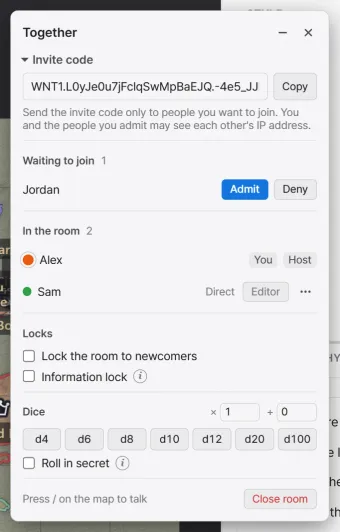
Section titled “Admitting and roles”The host checks each person who wants to join and lets them in one at a time. When someone presses Join, a red dot appears on the Together button. The panel’s Waiting to join section shows that person’s name. If the panel is closed, a notification also appears. Press Admit to let that person in as a participant. Press Deny to turn them away.
A participant has one of two roles.
| Role | What it does |
|---|---|
| Viewing | Only views the map and documents. Every participant has this role on first joining. |
| Editor | Edits the map and documents. The host allows it for each participant. |
The host changes a participant’s role with the Editor button on that participant’s row in the In the room list. Participants see their current role on their own row in the panel. For what each role can do, see Editing together.
The participant’s screen
Section titled “The participant’s screen”A participant’s screen shows the host’s map in real time. Each person zooms and moves their own view. The documents of the host’s project appear in the participant’s file list.
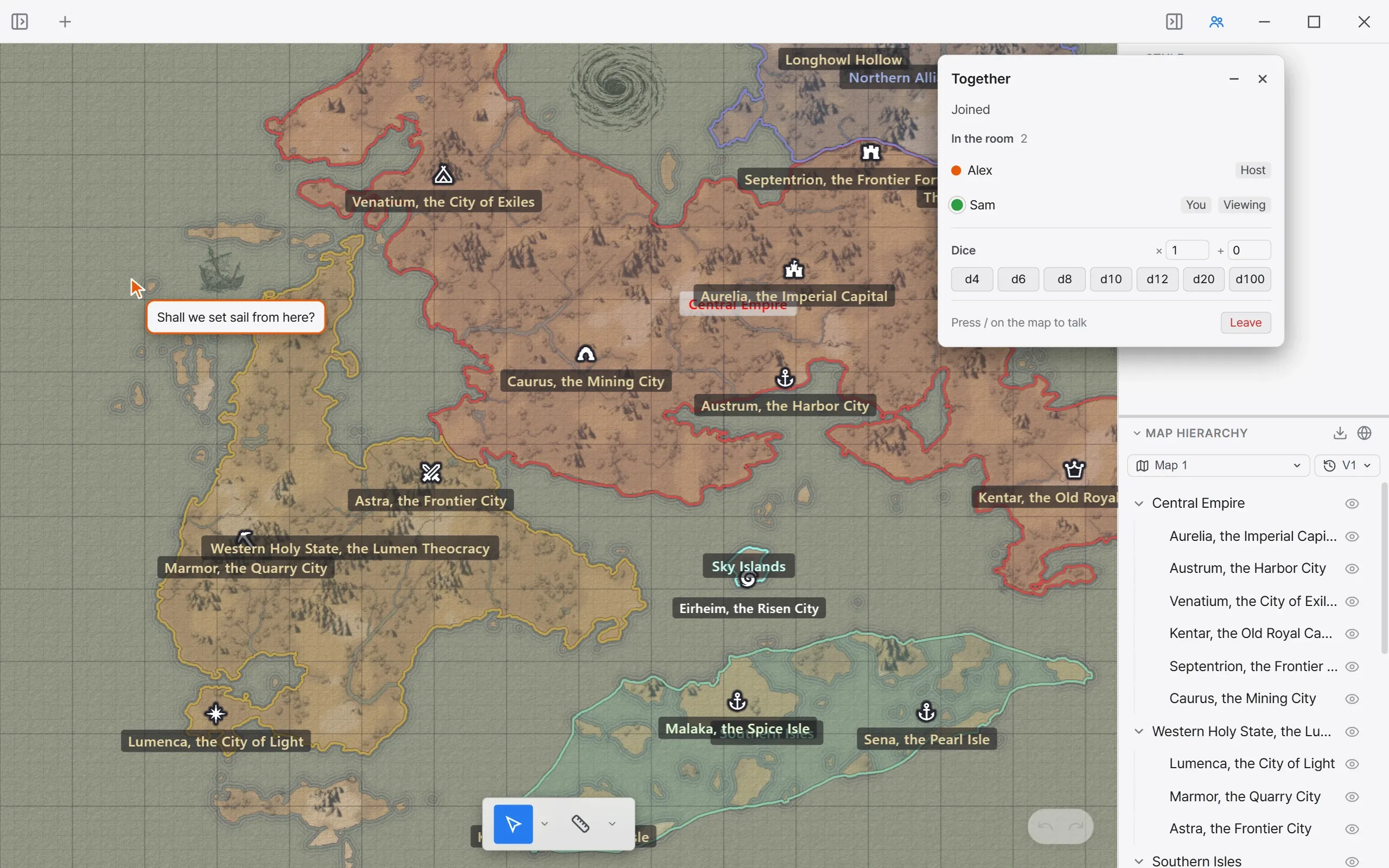
Participants do not save. What a participant edits is saved in the host’s project.
| Item | On the participant’s screen |
|---|---|
| Maps and versions | They switch when the host switches. See Editing together. |
| Custom icons | Custom icons the host used on the map show as they are. |
| Textures | Textures the host registered with Add texture are not sent. If the participant does not have the same texture, that area shows without it. |
| External images in documents | They are not loaded and show as a link instead. Clicking the link opens the image in the browser. |
Your color
Section titled “Your color”Each person in the room gets a color of their own. Their pointer on the map and their dice results show in that color. In the In the room list, click the color dot in front of your name to see nine colors. Pick one to change your color. A color already in use cannot be picked. The color you pick is remembered, and the next time you enter a room you get it again if it is free.
The Together panel
Section titled “The Together panel”While the room is open, the Together panel stays on screen as a floating panel. Clicking the map does not close it. Drag the title bar at the top of the panel to move it.
| Element | What it does |
|---|---|
| Fold, Unfold | Folds the panel down to its title bar, or unfolds it again. |
| Close | Closes the panel. The room stays open, and the Together button opens the panel again. |
| Invite code | The room’s invite code and the Copy button. Click the Invite code heading to fold or unfold it. Only the host has it. |
| Waiting to join | The people waiting to get in, with the Admit and Deny buttons. Only the host has it. |
| In the room | The color, name, and tags of the people in the room. |
| Locks | Lock the room to newcomers and the information lock. Only the host has it. |
| Dice | Rolls dice. See Editing together. |
| Press / on the map to talk | A note on how to talk on the map. Hover over it to see the full note. |
| Close room | Closes the room. Only the host has it. |
| Leave | Leaves the room. Only participants have it. |
These tags appear next to the names in the In the room list.
| Element | What it does |
|---|---|
| You | Your own row. |
| Host | The person who opened the room. |
| Editor, Viewing | A participant’s role. Shown in participants’ panels. |
| Direct, Relayed | How that participant is connected to the host. |
In the host’s panel, each participant row has an Editor button and a ⋯ button instead of the role tag.
Remove and ban
Section titled “Remove and ban”The host can send participants out of the room. Press the ⋯ button on a participant’s row, and Remove and Ban appear below it.
| Element | What it does |
|---|---|
| Remove | Sends the participant out of the room. If that person presses Join again, they show up under Waiting to join again. |
| Ban | Sends the participant out of the room, and keeps their IP address from entering this room again. Other people using the same IP address cannot enter either. |
Turn on Lock the room to newcomers under Locks to keep the people already in the room and accept no one new.
Leave and close the room
Section titled “Leave and close the room”A participant leaves the room with Leave at the bottom of the panel. The app returns to the welcome screen. The files received from the host are deleted from the participant’s computer. If the participant was editing a document, what they wrote up to then is saved in the host’s project.
The host closes the room with Close room. The room also closes when the host opens another project. When the room closes, every participant leaves it. The invite code no longer lets anyone in. Pressing Open a room again creates a new invite code.