
Information lock
The Information lock hides the map’s names and documents from participants, and reveals only what the host picks, one at a time. In a tabletop RPG, use it to keep the names and lore of places the players don’t know yet out of sight. Only the host handles the information lock. For opening a room, see Together.
What is hidden
Section titled “What is hidden”With the information lock on, participants see only the names and documents the host has revealed. The same goes for participants with the Editor role. Names that are not revealed are hidden. Documents that are not revealed become locked documents.
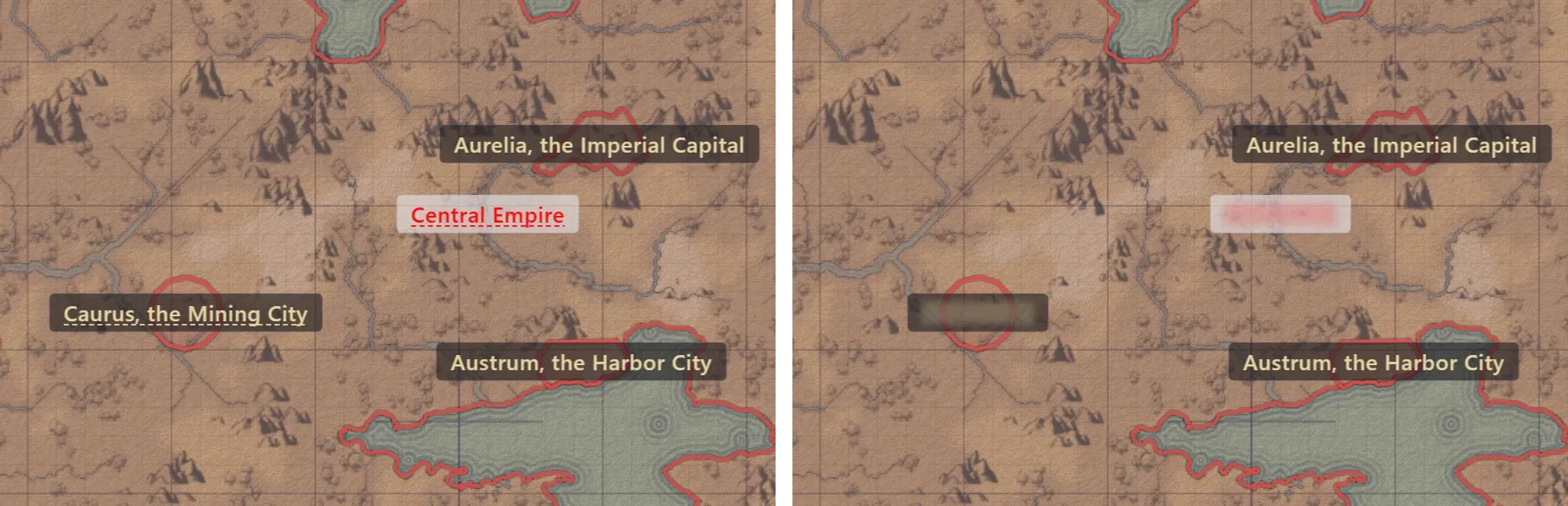
| Item | On the participant’s screen |
|---|---|
| Names of regions and markers | Shown as a blurred placeholder of the same width, whatever the length of the name. The same goes for the hierarchy list. |
| Lettering placed with the Text tool | Hidden. The host reveals a text by selecting it in Background edit mode. |
| Names of roads and images | Not shown to participants. |
| Documents | Only revealed documents appear in the file list. |
| Links to locked documents inside a revealed document | Blurred out. Hovering over one shows that it links to a document the host hasn’t revealed yet. |
| Regions and markers linked to a locked document | Double-clicking one shows This document is locked. You can read it once it is revealed. in place of the editor. The right-click menu shows Locked document. |
The terrain, the shapes of regions, and the positions of markers show as they are. Names written in a document as plain text, without a link, are not hidden.
During the information lock, text in a document someone else is editing does not appear on participants’ screens in real time. The text appears once the editing ends.
Turn on the information lock
Section titled “Turn on the information lock”-
After opening the room, turn on Information lock under Locks in the Together panel. Names are hidden on participants’ screens, and locked documents disappear from their file lists.
-
Reveal names and documents one at a time. What you reveal appears on participants’ screens.
The information lock can be turned on or off before participants join and while they are in the room. The moment you switch it, editing ends on any document a participant was editing, and what they wrote up to then is saved. Hover over the ⓘ mark next to Information lock to see a description.
On the host’s map and hierarchy list, a dotted line runs under each name that is hidden from participants. On the map, a dotted line also runs under each hidden text.
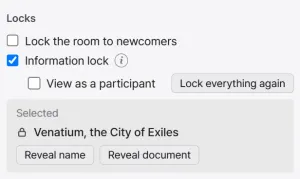
With the information lock on, these items appear below Information lock.
| Element | What it does |
|---|---|
| View as a participant | When on, hidden names on the host’s map and hierarchy list look the same as on participants’ screens. While it is on, no reveal buttons appear under Selected. |
| Lock everything again | Locks every revealed document again, along with the names revealed on every map in the project. It sits next to View as a participant. |
Reveal names and documents
Section titled “Reveal names and documents”Names are revealed for each region and marker, and documents for each document. You reveal them in these places.
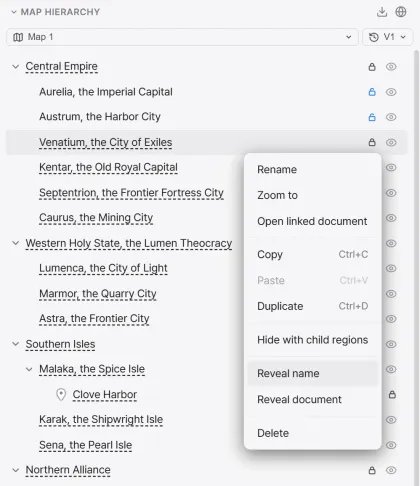
| Place | What it does |
|---|---|
| Lock button in the hierarchy list | Every row with a name gets a lock button. Click it to reveal the name, and click it again to lock the name. The lock of a revealed name changes to an open lock. |
| Selected in the panel | Select one element with a name on the map, and its name and reveal buttons appear under Selected in the panel. Select a text in Background edit mode, and the Reveal text button appears. |
| Right-click menu | Right-click a row in the hierarchy list or a document in the file list to see the reveal items. |
These items appear under Selected and in the hierarchy list’s right-click menu.
| Element | What it does |
|---|---|
| Reveal name, Lock name | Shows the element’s name to participants, or hides it again. |
| Reveal document, Lock document | Shows the document linked to the element to participants, or hides it again. Revealing a document also reveals the element’s name. |
| Show to everyone | Opens a revealed document on every participant’s screen. Appears once the document is revealed. |
| Reveal everything inside | Reveals the names of the region and of every element inside it. Only in the right-click menu of a region with elements inside. |
| Lock everything inside | Locks the names of every element inside the region again. The region’s own name stays as it is. Only in the right-click menu of a region with elements inside. |
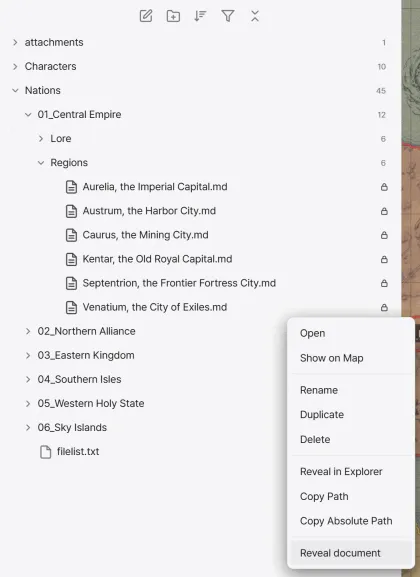
In the file list, a lock mark appears next to each locked document. Right-click a document to see Reveal document or Lock document. A revealed document also shows Show to everyone.
Notifications for participants
Section titled “Notifications for participants”When the host reveals something, a notification appears over the participants’ map. It disappears after 7 seconds.
| What was revealed | On the participant’s screen |
|---|---|
| A name | Its spot is marked on the map for a moment. A Revealed notification appears with the revealed name. Press Show on map in the notification to move the view there. |
| A document only | A Document revealed notification appears with the document’s name. Press Open document to open that document. |
Participants with the Editor role
Section titled “Participants with the Editor role”During the information lock, participants with the Editor role edit only what they can see. The following edits are not accepted, and they are undone on that participant’s screen.
- Edits that change a hidden name or a link to a locked document
- Edits that delete an element holding something hidden
Such a participant cannot write in a document that has a link to a locked document.
Names that a participant with the Editor role gives to elements they create, and names they write where a name was empty, are revealed. Documents they create also start out revealed.
Reveal record
Section titled “Reveal record”Whether the information lock is on, and what has been revealed, is saved in the project. When the host opens a room with the same project again, it starts exactly as it was left last time. Turning the information lock off keeps the record of what was revealed.
Revealed names are recorded for each map separately. Revealed documents apply to the whole project. An element renamed while the room was closed starts hidden again in the next room.