
Label pills and map lettering
The names of regions and markers show on the map as a Label pill or as Map lettering. The shape is chosen for each region and marker with Shape in the style panel.
Two shapes
Section titled “Two shapes”A Label pill is a name written inside a small box. It stays the same size when you zoom in or out.
Map lettering is a name written without a box. A region’s map lettering is shown large, in the name’s Color. A region with no name Color set uses its border color. The larger the region is on screen, the larger and fainter the lettering gets. The lettering size has a minimum and a maximum.
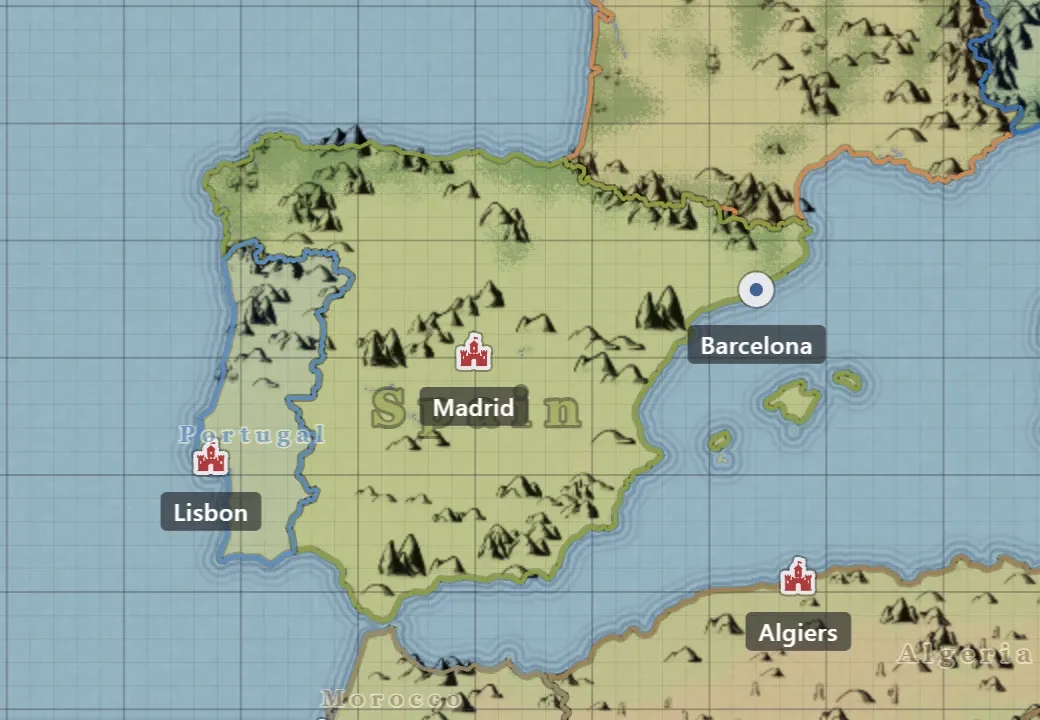
A marker’s map lettering is shown in the name’s Color. Without a name Color, it shows in a dark color. Like a label pill, it stays the same size when you zoom in or out.
A region’s map lettering sits in the middle of the widest part of the region’s shape and stays in the same spot as you zoom. A label pill sits at the region’s center. A marker’s name always sits below its icon, whichever shape it has.
When a region gets small on screen and collapses into a dot, a name set to map lettering also shows as a label pill. When you zoom far in, the region instead recedes into the background. If a region inside it then shows with its name, the outer region’s map lettering disappears. Selecting the outer region brings it back.
Selecting a region whose name shows as map lettering makes the name stronger and brings it above marker names.
Default shape
Section titled “Default shape”On newly created maps, region names show as map lettering. Maps saved with an earlier version of the app keep label pills. Marker names start out as label pills.
Change the default shape of region names with Name style under Default Region Style in the Current Map tab of Settings. Every region whose shape is not set separately in the style panel follows this value.
Region names
Section titled “Region names”Select a region and the following items appear in the Name section at the top of the style panel in the right panel.
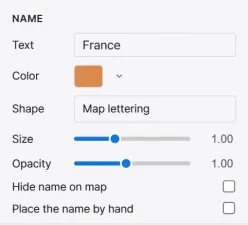
| Item | What it does |
|---|---|
| Text | The name shown on the map. |
| Color | The name’s color. |
| Shape | Choose Label pill or Map lettering. |
| Size | Appears only with map lettering. A multiplier on the lettering size that the region’s size sets (×0.5 to ×2). |
| Opacity | Appears only with map lettering. A multiplier on the lettering strength that the region’s size sets (×0.2 to ×2). |
| Hide name on map | Hides the name on the map. The name stays in the Map Hierarchy panel and in documents. |
| Place the name by hand | Appears only with map lettering. Turning it on pins the name where it is now, and turning it off puts the name back in the middle of the widest part of the region. |
Clicking map lettering with the Select tool selects that region. A drag that starts on map lettering does not move the region; it makes a box selection. Clicking a marker icon under the lettering selects that marker.
Dragging a region’s map lettering while that region alone is selected moves the name’s spot. Place the name by hand then turns on. When you move the region, the spot you set moves with it.
A region with separate parts gets one name for each group of parts. With map lettering, the name of the largest part sits in the widest spot within that part.
Marker names
Section titled “Marker names”Select a marker and the following items appear in the Name section of the style panel.
| Item | What it does |
|---|---|
| Text | The name shown on the map. |
| Color | The name’s color. |
| Shape | Choose Label pill or Map lettering. |
| Size | The name’s size (8 to 24px, 12px by default). The icon also grows and shrinks with the name’s size. |
| Opacity | How strong the name is (0.2 to 1). The icon’s strength stays as it is. |
| Hide name on map | Hides the name on the map and leaves only the icon. |
Hide overlapping names
Section titled “Hide overlapping names”Turn on Hide the less important of overlapping names and, wherever names overlap, the less important one is hidden. A hidden name comes back when you zoom in and there is room for it. This item is in the Current Map tab of Settings, under Name Display. It applies only to the current map.
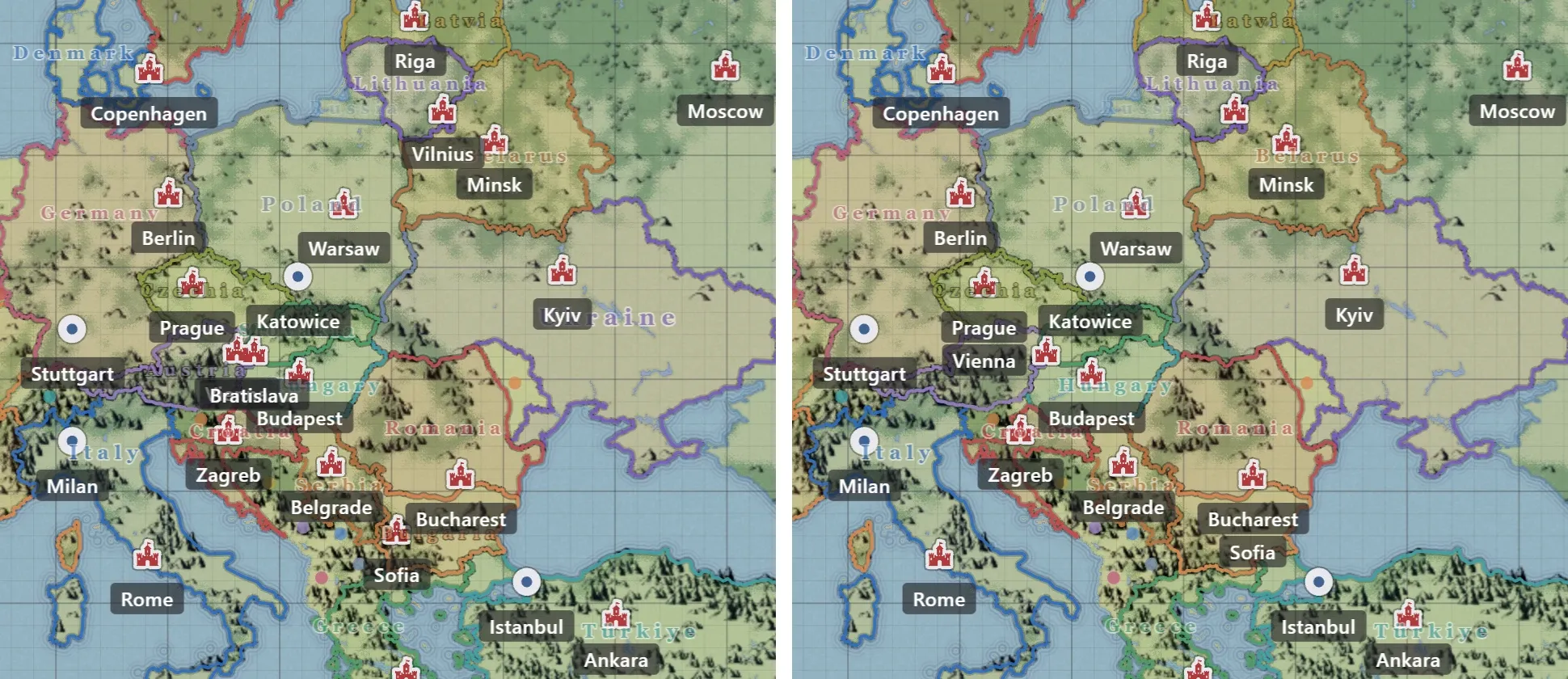
Among markers, the one with the larger name Size is more important. With the same size, the marker that stays visible when zoomed further out is more important.
| What overlaps | Result |
|---|---|
| Region names shown as map lettering | The larger name stays and the smaller one is hidden. |
| A marker name overlapping a more important marker’s name or icon | Only the name is hidden. The icon stays. |
| A marker icon covered by a more important marker’s name or icon | The two markers share the more important marker’s icon, and the name stacks under the more important marker’s name. |
| A marker name and a region name shown as map lettering | The marker name is not hidden. If a single marker name covers 30% or more of the region name, the region name is hidden. |
Up to two names stack under a shared icon. When there is no room left to stack, the name and the icon are hidden together. A marker whose own icon is hidden is selected by clicking its name.
The names of selected regions and markers always show, even when they overlap. Selecting something never makes other names appear or hide. Region names shown as label pills, and regions collapsed into dots, are not affected by this setting.
Merge overlapping labels
Section titled “Merge overlapping labels”Merge overlapping labels merges overlapping label pills into one and adds a +N badge. It is in the Map tab of Settings. Region names shown as map lettering are not merged. On a map with Hide the less important of overlapping names turned on, label pills are not merged. For this setting, see Map and Current Map.
Export map image
Section titled “Export map image”Images made with Export map image, and the project thumbnails on the welcome screen, draw every name as a label pill at the default size. Each label pill sits at its own region’s or marker’s spot. A region name shown as map lettering comes out as a label pill at the name’s spot. Names with Hide name on map turned on are not drawn. Names hidden by Hide the less important of overlapping names or Merge overlapping labels are drawn too. For the Export Map Image window, see The map hierarchy panel.