
Editing together
Participants with the Editor role edit the host’s map and documents together with the host. Their edits show at once on the screens of everyone in the room and are saved in the host’s project. For opening and joining a room, see Together.
Allow editing
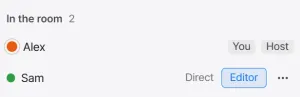
Section titled “Allow editing”The host allows or takes away editing for each participant. Press the Editor button on a participant’s row in the In the room list, and that participant’s role becomes Editor and the button turns on. Press it again and the role goes back to Viewing. Hovering over the button shows Allow editing or Stop editing rights.
What each role can do
Section titled “What each role can do”Participants with the Viewing role can use only the Select, Hand, and Ruler tools in the bottom toolbar. The Draw Region, Magic Wand, and Place Marker tools are hidden. The file list’s New file and New folder buttons are hidden too. Documents are read-only.
Participants with the Editor role can do the following.
| Item | What they can do |
|---|---|
| Map | Draw and edit regions and markers. Paint terrain in background edit mode. |
| Documents | Create documents and write in them. Rename and delete them as well. |
| Marker icons | Choose from the built-in icons and the custom icons already used on the map. They cannot add or delete icons. |
Edit documents together
Section titled “Edit documents together”A document is edited by one person at a time. Everyone else watches the text as it is written, in real time. The host edits documents the same way. While the information lock is on, what someone else writes appears on participants’ screens after the editing ends.
-
Open a document that nobody is editing and start writing. You become the person editing that document, and a red Done editing badge appears at the top right of the document.
-
When you are done, press Done editing. The editing ends, and what you wrote is saved in the host’s project.
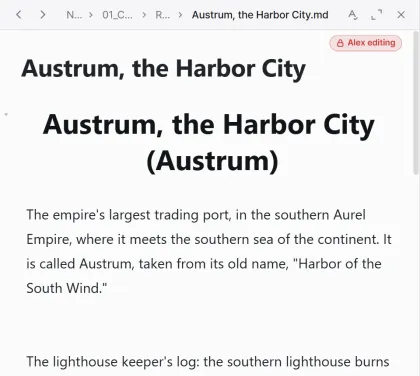
While you edit, everyone else sees an editing badge with your name in the same place. They cannot write in that document or change its title.
Editing also ends in the following cases, and what was written up to then is saved.
- The person editing closes the document
- The person editing leaves the room or loses the connection
- The host changes that participant’s role to Viewing
- The host ends that editing
- The host turns the information lock on or off while a participant is editing
On the host’s screen, the editing badge with a participant’s name can be clicked. Clicking it opens a confirmation window. Press Done editing in that window to end the participant’s editing, and what they wrote up to then is saved.
Switch maps and versions
Section titled “Switch maps and versions”Only the host switches maps and versions, whatever the participants’ roles. When the host opens another map or version with Switch map or Manage versions in the map hierarchy panel, every participant’s screen switches along. Participants see the notice The host switched maps.
When it switches to another map, the participant’s view fits the whole new map. When it switches to another version of the same map, the view stays where it was. When the map or version changes, the participant’s undo history is cleared.
Pointers
Section titled “Pointers”The pointers of the people in the room show on the map as arrows in each person’s color. The arrows carry no names. Check who has which color in the panel’s In the room list. A pointer that has not moved for 15 seconds disappears from the screen.
Talk on the map
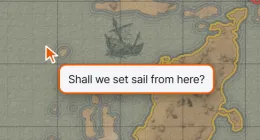
Section titled “Talk on the map”With your pointer over the map, press / and a talk field opens beside the pointer. As you type in the field, the text appears on the others’ screens letter by letter, as a speech bubble beside your pointer.
| Key | What it does |
|---|---|
/ | Opens the Say something (Esc to close) field beside the pointer. The field follows the pointer. It does not open while you are typing in another input field. |
Enter | Clears what you are saying so you can write something new. It is cleared from the others’ screens too. The field stays open. |
Esc | Closes the field. What was in the field stays as a speech bubble for 5 seconds. Clicking elsewhere does the same. |
Words you stop adding to for 5 seconds are cleared on their own. If you type nothing for 20 seconds, the field closes. You can type up to 500 characters at a time. What you say is not recorded anywhere.
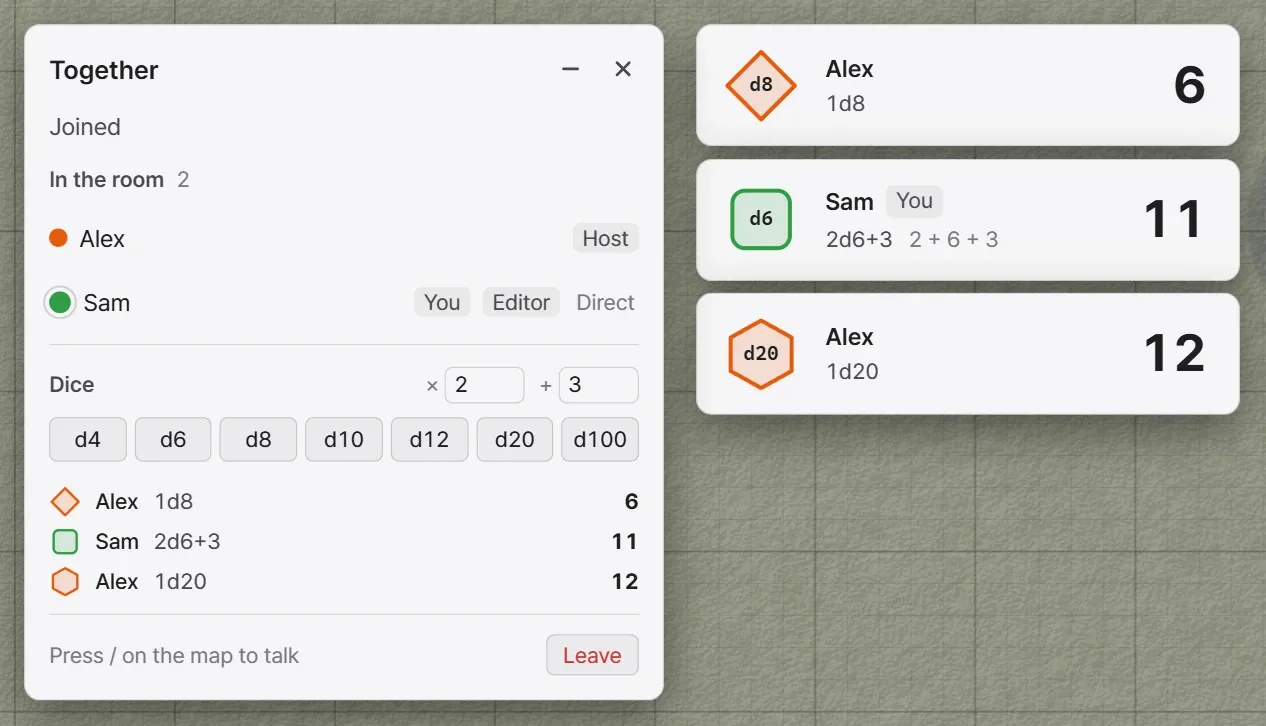
Roll dice in the panel’s Dice section. Both the host and the participants can roll. The result appears on the screens of everyone in the room. Whoever rolls, the host’s app decides the result.
| Element | What it does |
|---|---|
| × | How many dice to roll at once, from 1 to 10. |
| + | A value added to the total, from -99 to 99. Enter a negative number to subtract. |
| d4, d6, d8, d10, d12, d20, d100 | Rolls that die as many times as set. |
| Roll in secret | When on, only the host sees the result. Participants see only that a roll was made. Only the host has it. |
Results appear as cards at the top center of the window, whether you are looking at the map or a document. On the left of a card is a die drawn in the color of the person who rolled. In the middle are that person’s name, the roll (for example 2d6+3), and what each die came up. The total shows large on the right. Up to four cards stack, and each one disappears after 7 seconds.
When the host rolls in secret, the host’s card shows the numbers with a Secret roll tag. Participants’ cards show the dice and the total as ?.
Below the panel’s Dice section, the last ten results rolled since you entered the room stay listed. The list lasts only while you are in the room and is not saved.