
Manage uploaded websites
Update
Section titled “Update”-
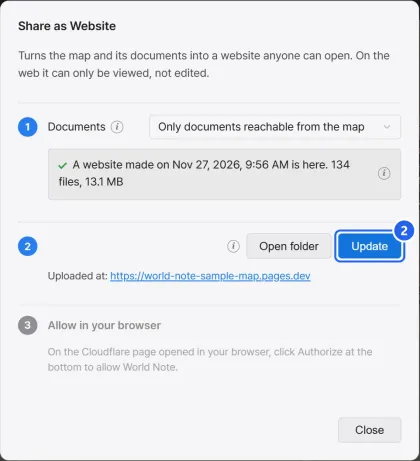
After changing the project, press Share as website in the Map Hierarchy header.
-
Press Update, then press Authorize at the bottom of the Cloudflare page that opens in your browser. The website is created again and uploaded, and the changes show at the same address.
- If the folder the website was last created in has been deleted, a window to choose a folder opens first.
Take down
Section titled “Take down”-
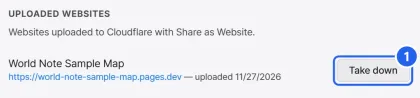
Under Uploaded websites in Settings > General, press Take down for the website you want to take down.
-
In the confirmation dialog, press Take down, then press Authorize at the bottom of the Cloudflare page that opens in your browser. A website that has been taken down can no longer be seen at its address.
The list of uploaded websites
Section titled “The list of uploaded websites”
The list of uploaded websites
Section titled “The list of uploaded websites”Uploaded websites lists the websites uploaded with World Note on this computer. Each one shows its title (the project folder’s name), its address, and the date it was last uploaded. Click an address to open it in the browser.
Websites are told apart by the project folder they were uploaded from. If you move or rename the project folder, it is uploaded as a new website.
Websites uploaded from another computer do not appear in the list. Delete those under Workers & Pages in the Cloudflare dashboard.
Remove from list
Section titled “Remove from list”
Remove from list
Section titled “Remove from list”If the Cloudflare account you allowed does not have that website, World Note offers Remove from list in place of Take down. This happens when you allowed an account other than the one the website was uploaded to, or when the website was already deleted in the Cloudflare dashboard.
Remove from list deletes it from this list only and leaves any website remaining on Cloudflare as it is. If you allowed another account, press Cancel, sign in in the browser with the account the website was uploaded to, and press Take down again.
When you allowed another account
Section titled “When you allowed another account”
When you allowed another account
Section titled “When you allowed another account”If you press Update and then allow a Cloudflare account other than the one the website was uploaded to, the dialog says so and a field for the website’s name opens. Uploading as it is creates a new website in the account you allowed, and the original website stays as it is.
To update at the same address, close the dialog, sign in in the browser with the account the website was uploaded to, and press Update again.